Radial Launcher for Windows 10 & 11

Hold Ctrl+Alt and a wheel opens under your cursor

Flick to a slice and let go to run it. Your apps, their live windows, ten popover tools and the system controls — all one gesture away, without moving your hand to the taskbar.

Coming to the Microsoft Store. No account, no telemetry, no servers.

Screen recordings

See it running

Unedited captures from Gola on Windows 11 — cropped to the wheel so you can read it, but nothing sped up and nothing staged. Click any clip to watch it full size.

The gesture

The wheel opens where you are

No window to find, no launcher to focus. The wheel appears centred on the cursor with your curated apps on the inner ring, then the outer ring follows whatever you point at.

2.7s · silent loop Empty desktop → wheel
Window switching

Live windows on the outer ring

App slices behave like taskbar buttons. Not running, it launches. One window, it focuses. Several, and they fan out on the outer ring so you pick the exact window in the same flick.

2.6s · silent loop Recorded over real windows
Popover tools

Ten tools that open in place

Timer, calculator, colour picker, clipboard history, magnifier, screenshot, quick note, caffeine, focus dim and dictate. They open as popovers next to the wheel and can be pinned.

7.6s · silent loop Tools ring → two popovers
System control

System controls in the same gesture

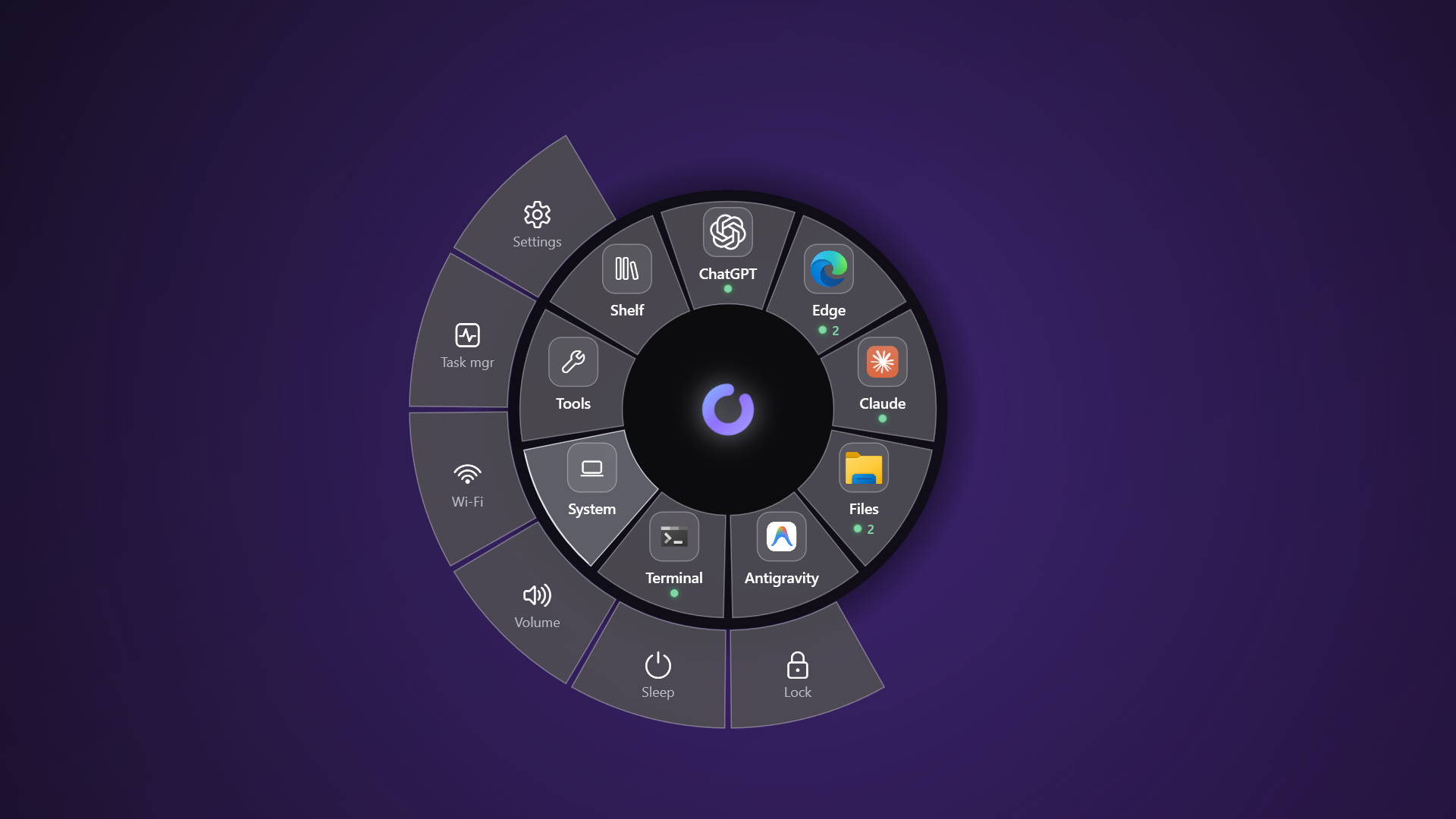
The System slice fans out Settings, Task Manager, Wi-Fi, Volume, Sleep and Lock. Sections work exactly like apps do — point at one, and its actions appear on the outer ring.

3.8s · silent loop Six labelled actions
Customisation

Tuned against a live wheel

Settings keeps a real wheel on screen while you change it. Five size presets (S, S+, M, L, XL), label length and how many windows each fan shows — all visible before you commit.

5.5s · silent loop Settings → Wheel

Try the wheel

A web mock-up of the gesture. Press 19 or hover a slice; the clip beside it shows the same step in the real app.

Step 1 of 4 — Summon
Press Ctrl+Alt (or click a trigger below) to open the wheel under your cursor.
C Claude

3 live windows open. Slide onto an outer preview, or release to focus the main window.

First five minutes

The whole thing, in order. You have already seen each of these above.

1

Hold the chord

Hold Ctrl+Alt, or your configured mouse button. The wheel opens centred on the cursor and stays open while you hold.

2

Flick to a slice

The inner ring holds your curated apps plus System, Tools and Shelf. A green dot means running; a number means that many windows.

3

Dwell to fan out, release to run

Stay on a slice with several windows and they fan onto the outer ring. Slide onto one and let go to focus it. Release on the slice itself to focus the main window.

4

Reach the tools and the system

Press 19 to jump straight to a slice. Tools open as popovers that stay after the wheel closes. Esc, or releasing outside the wheel, dismisses it.

5

Make it yours

Settings → Wheel changes the size, labels and fan depth against a live preview. Settings → Keymap changes the chord if AltGr collides with your layout. Dictation and the Telegram Shelf are both opt-in.

What is on the wheel

The stills below are the Microsoft Store listing shots; the clips above are screen recordings.

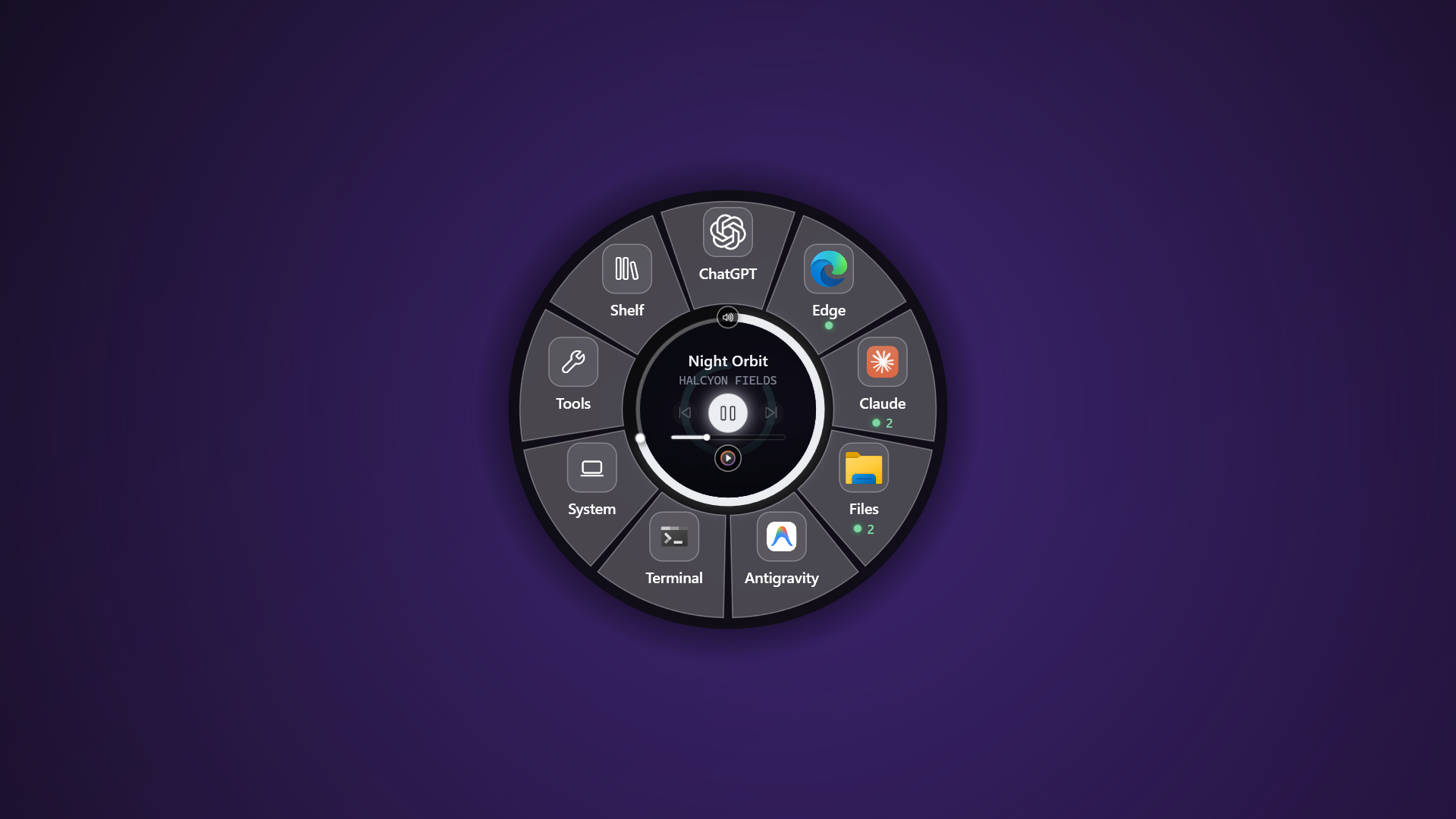
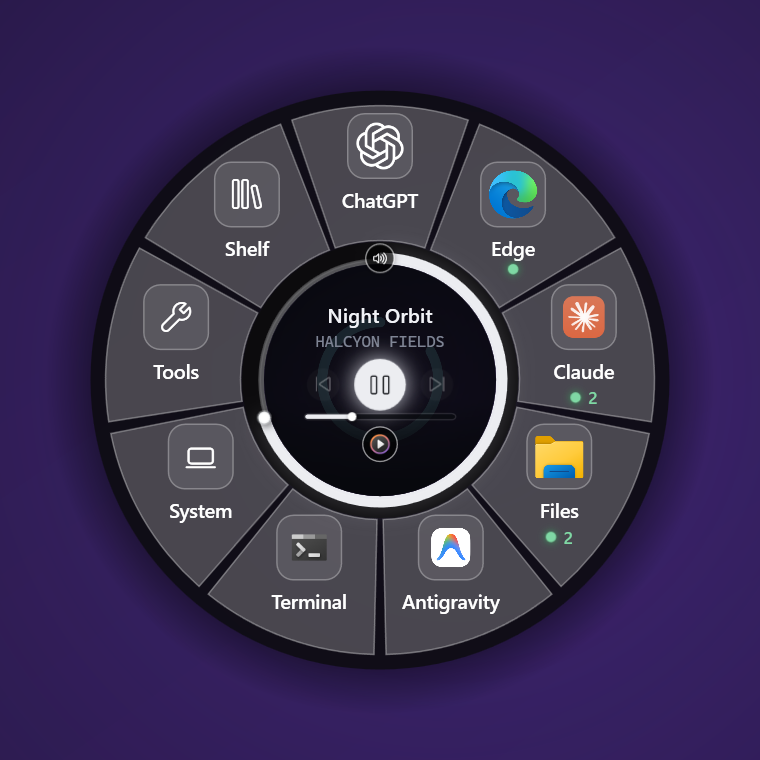
Your apps, curated

You choose what sits on the inner ring. Running apps carry a green dot and a window count, so the wheel doubles as a status glance.

The Gola wheel with app slices on the inner ring

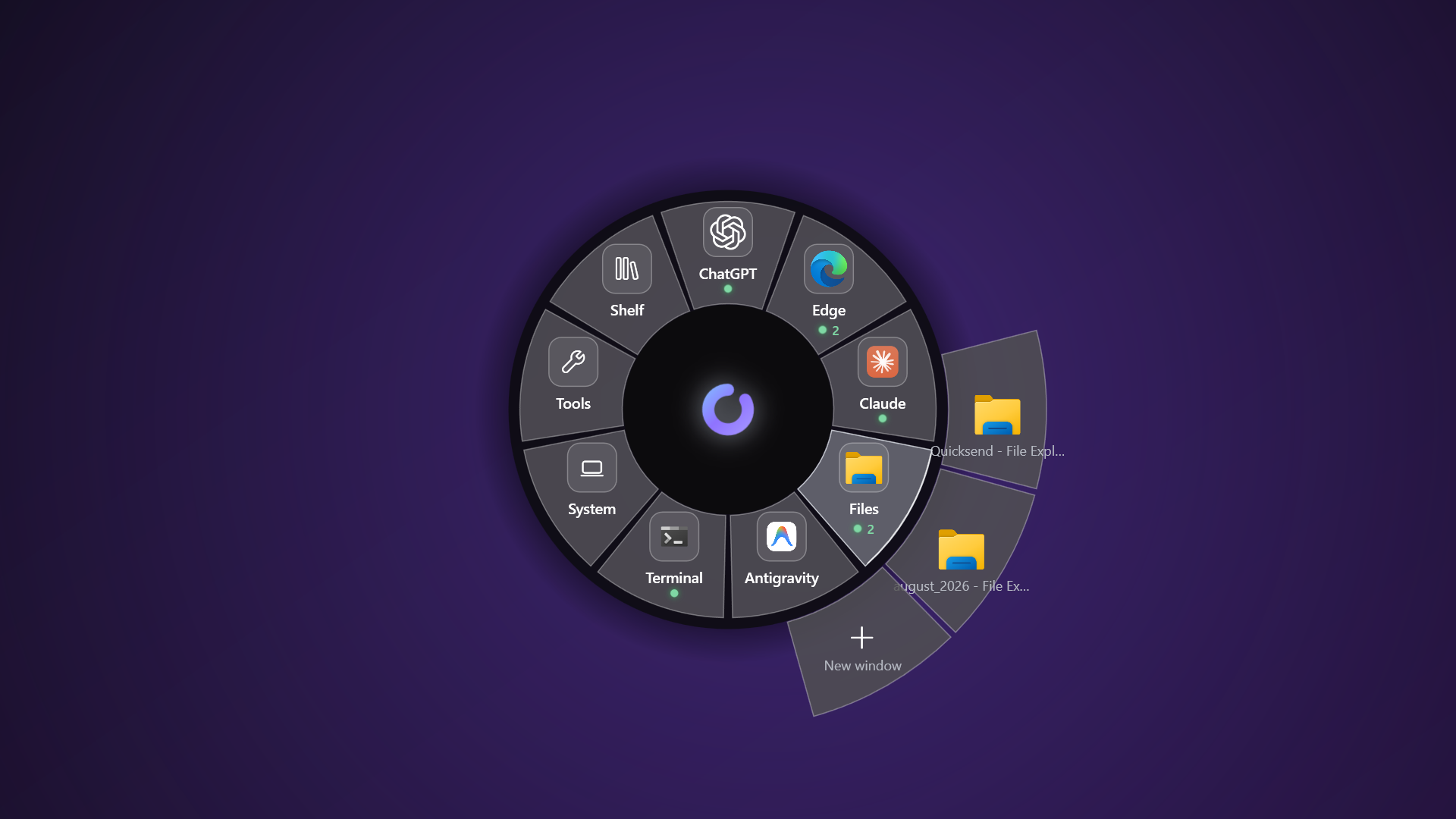
Live window fan-out

Several windows on one app fan out on the outer ring, each with its own label, plus a “New window” action on apps that support one.

File Explorer windows fanned out on the outer ring

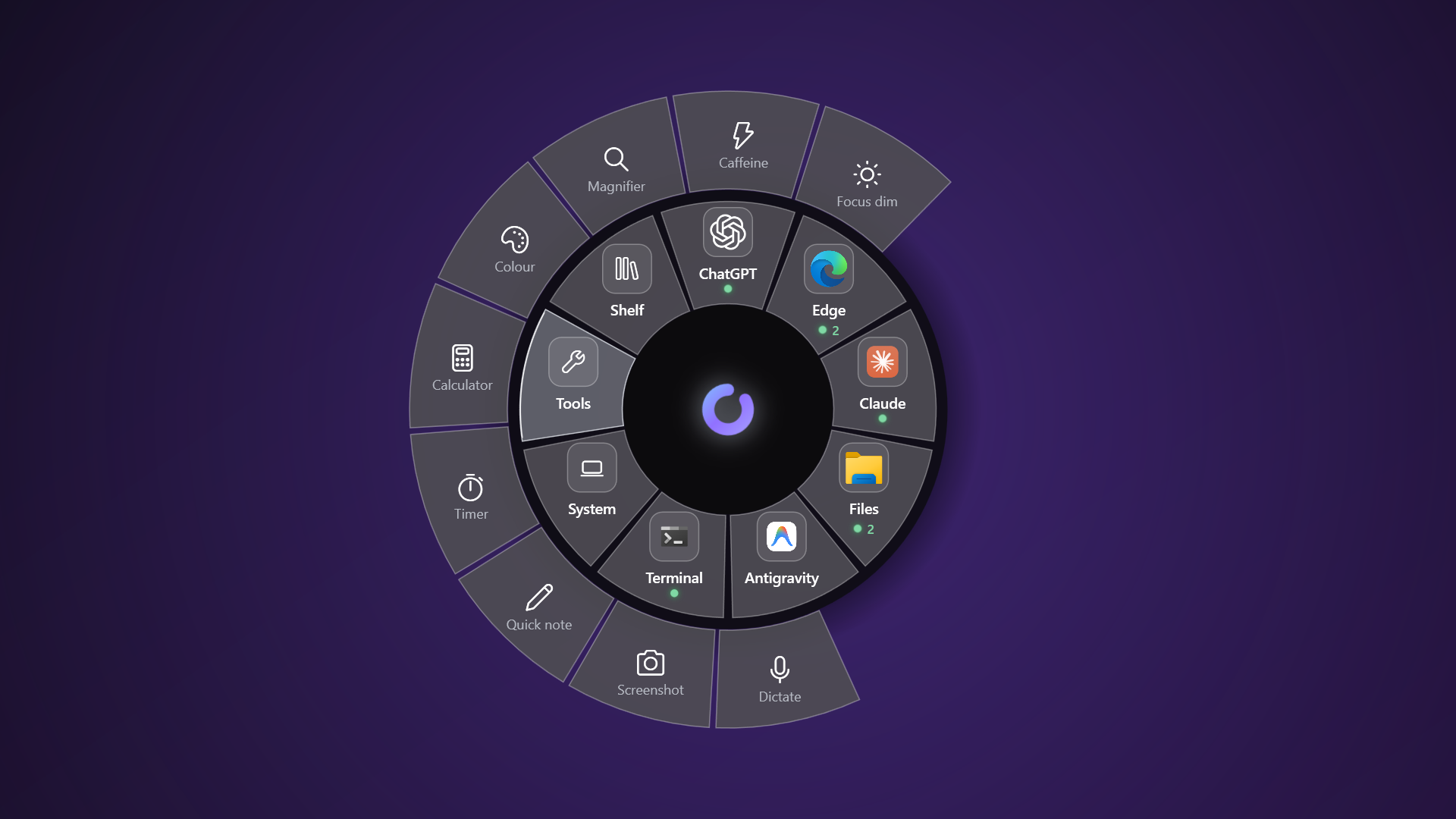
Ten popover tools

Timer, calculator, colour picker, clipboard history, magnifier, screenshot, quick note, caffeine, focus dim and dictate — all pinnable.

The Tools ring showing ten utilities

System controls

Settings, Task Manager, Wi-Fi, Volume, Sleep and Lock, without hunting through the tray or the Start menu.

The System section fanned out with six actions

Settings that stay out of the way

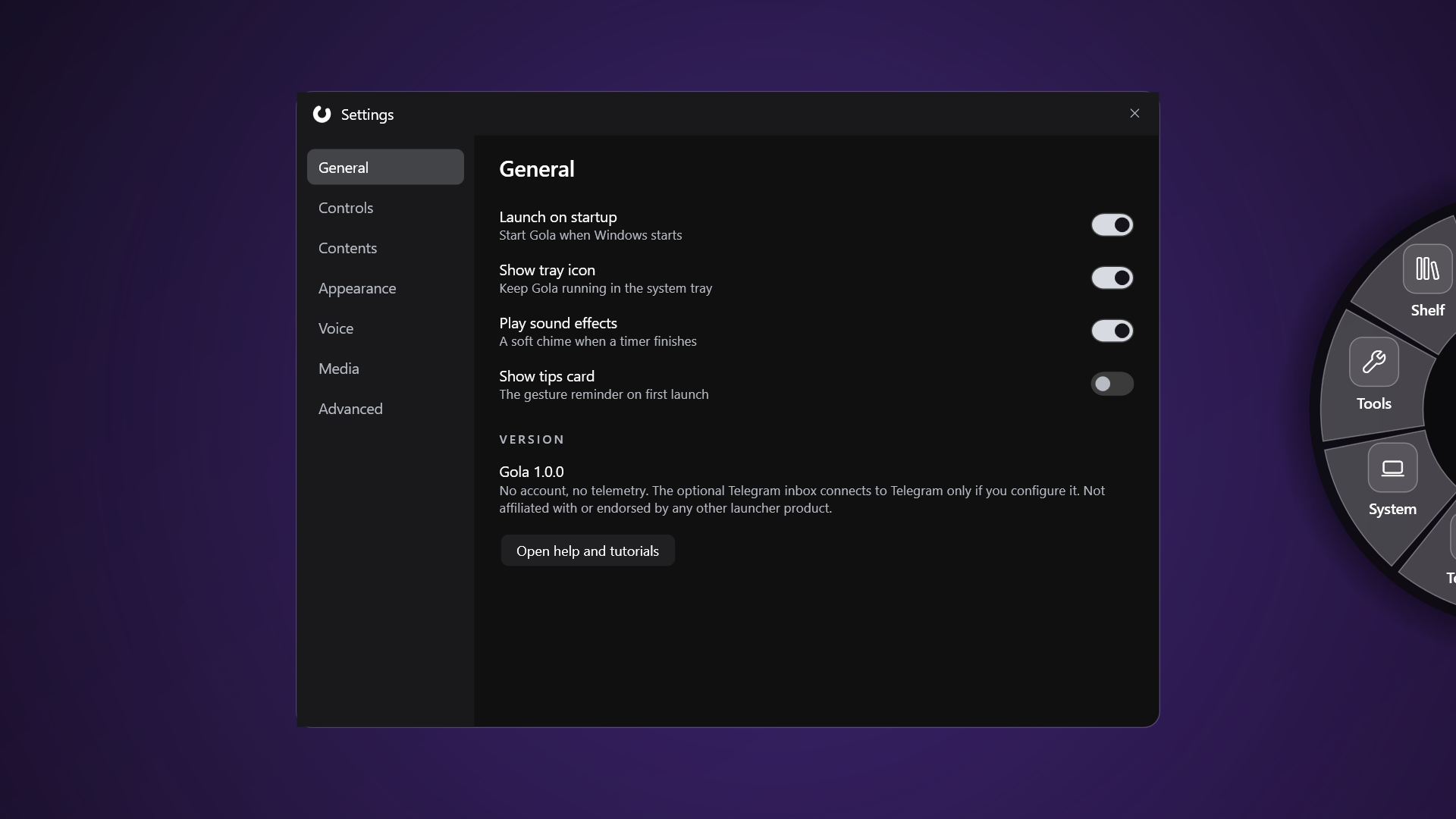
Chord and mouse-button bindings, five wheel sizes, motion, per-app entries, and a live preview beside every change.

The Gola Settings window, General page

Opt-in extras

Two features ship switched off, because both need a permission you should grant deliberately rather than by default:

  • Local dictation. Hold the chord in a text field and speak. A 141 MB speech model downloads once and then runs entirely on your machine — no network traffic.
  • Telegram Shelf. A seven-day file inbox fed from your phone through your own bot, created with @BotFather /newbot. No Gola account or server is involved.

Native Segoe Fluent icons

The glyphs already on your machine. Nothing bundled, nothing licensed.

DictateE720
ScreenshotE722
Quick noteE70F
TimerE916
CalculatorE8EF
ColourE790
MagnifierE71E
CaffeineE945
Focus dimE706
ClipboardE8C8
ShelfE8F1
ToolsE90F
SystemE770
LockE72E
SleepE7E8
VolumeE767
Wi-FiE701
Task mgrE9D9
SettingsE713
Not out yet

Get told when it ships

Gola is finishing Microsoft Store certification. Leave an address and you get one email when it is live — nothing else, no list, and it is deleted once the launch mail goes out.

Common questions

The ones this app actually attracts.

Is Gola spyware?

No. It installs a system-wide keyboard hook (the only way Windows reports a key being held and released), captures screen content for the window previews, and opens the microphone if you turn dictation on.

Keystrokes are compared against your trigger chord and passed straight on — never recorded, never transmitted. Screen capture stays local. The microphone opens only while dictating. No account, no telemetry, no servers. Details in the privacy policy.

When can I get it?

It is in Microsoft Store certification. There is no public build yet and no date worth promising, so the honest answer is “soon, and you will hear when.” Join the waitlist and you get exactly one email on the day.

Why did my antivirus flag it?

Keyboard hooks, screen capture and launching configured commands are, together, a heuristic match for the things antivirus engines watch for. Every one of them is required for a hold-and-flick launcher to work at all. The Store build is signed by Microsoft.

The wheel does nothing when I hold the chord

Almost always a trigger conflict. On keyboard layouts that use AltGr — which Windows reports as Ctrl+Alt — the default chord collides with ordinary typing. Change it in Settings → Keymap to Ctrl+Shift.

Opening it with the mouse, or a laptop trackpad

Settings → Keymap takes any combination of Back, Forward and Middle. They work as toggles too — hold and flick, or tap to leave the wheel open for a click.

Trackpad: pick Middle, then in Windows Settings → Bluetooth & devices → Touchpad → Three-finger gestures, set Taps to “Middle mouse button”.

Where does Gola keep my data?

%APPDATA%\Gola\ for settings, and %USERPROFILE%\Gola\ for screenshots, notes, Shelf files and the speech model. Nothing leaves the machine.